
DIGITAL SIGNAGE FOR APPLE TV
BETTER SIGNAGE for Apple TV
BETTER SIGNAGE for Apple TV
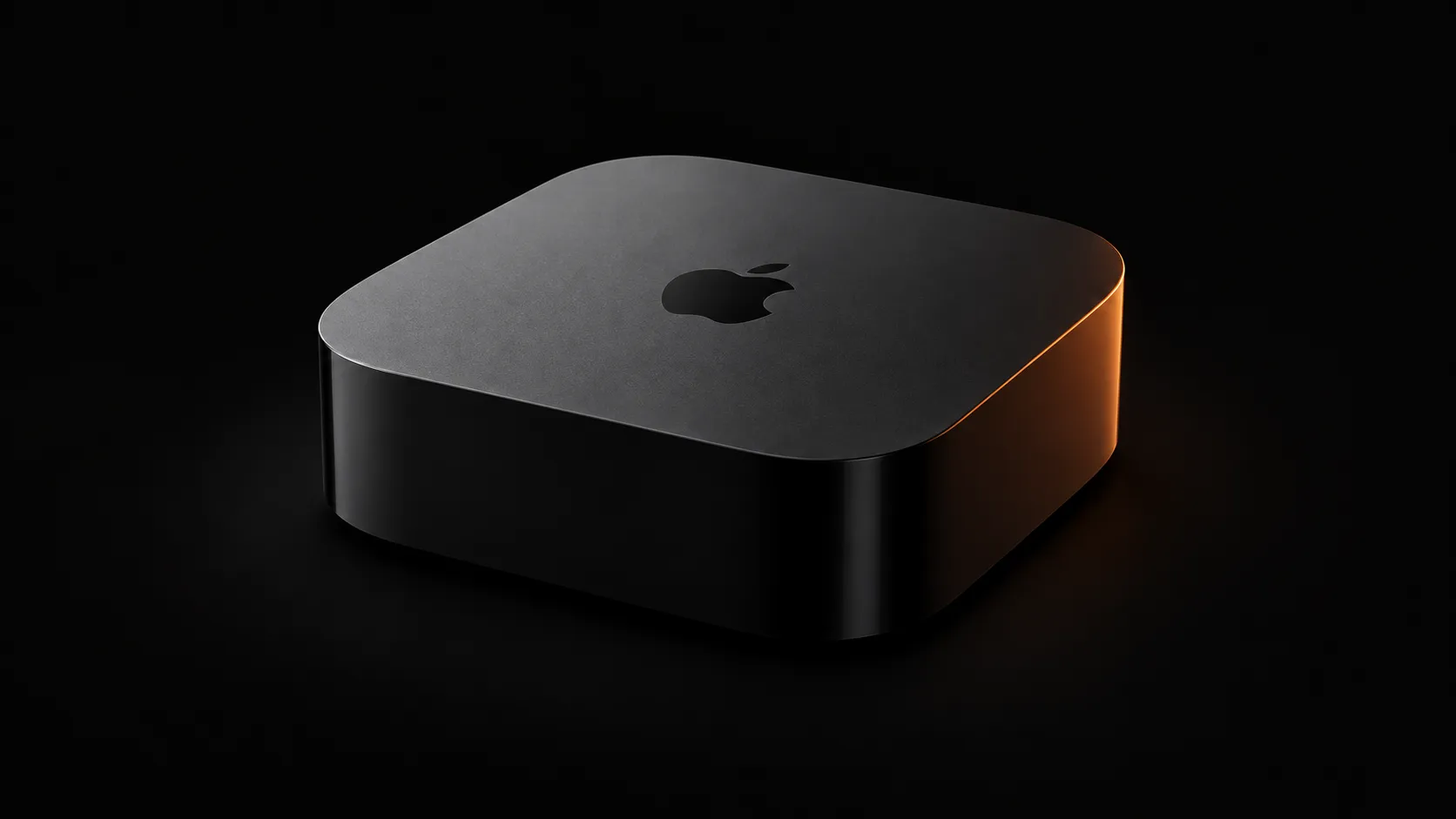
0:00 / 1:06
The video could not load. Try again or open the overview.
Start for free
Unlimited screens. No per-screen fee.
Bars / Restaurants / Nightclubs
Free your signage.
Free digital signage for Apple TV. Unlimited screens.
Start with 50 MB at $0 a month. Upload supported videos and menu slides, arrange a playlist, and choose the displays behind your bar. Every standard plan includes unlimited screens; upgrade only when your media library needs more room.
FREE: 50 MB / UNLIMITED SCREENS
PAID PLANS: MORE STORAGE / NO PER-SCREEN FEE
{01 / OPERATING SEQUENCE◆}
From upload to on screen
Change tonight's special from your phone. Selected Apple TVs prepare the update.
Already prepared content keeps playing while each selected Apple TV downloads and verifies the next playlist.
- [ 01 ]
Upload
Add videos, JPEGs, or PNGs. Videos are queued for automatic conversion and checked before they can join your playlist. Playback is muted.
- [ 02 ]
Build
Order them into a playlist that loops all day.
- [ 03 ]
Select
Choose the paired Apple TVs to update together.
- [ 04 ]
Publish
Assign one locked playlist version to the selected screens.
- [ 05 ]
Prepare locally
Each Apple TV downloads its own copy and checks it before use.
- [ 06 ]
Activate
After every selected screen is ready, all use one scheduled activation time.


{02 / CONTROL SURFACE◆}
For the owner, not the AV department
Upload. Arrange. Select. Publish.
Better SignageCurrent web dashboard
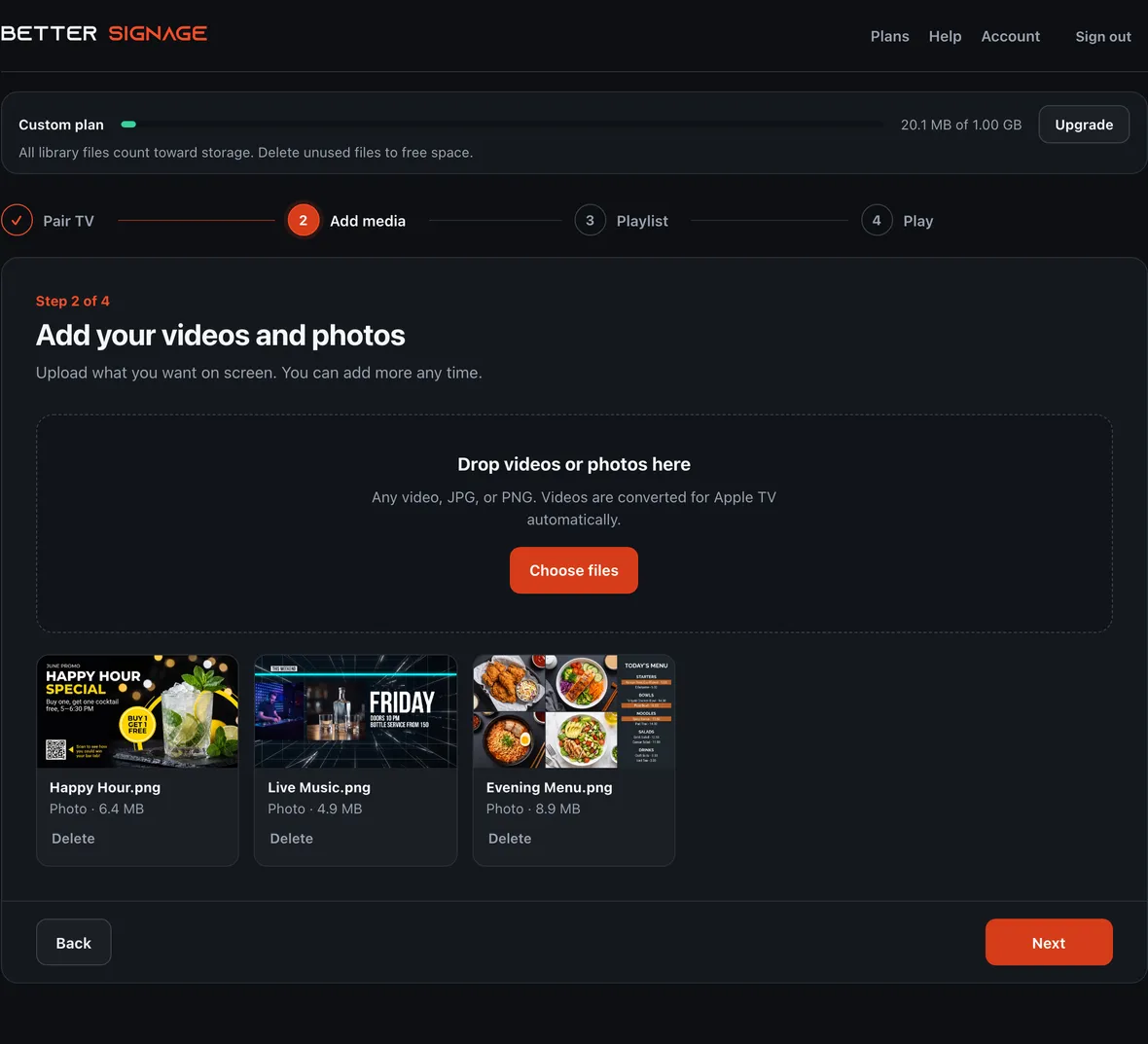
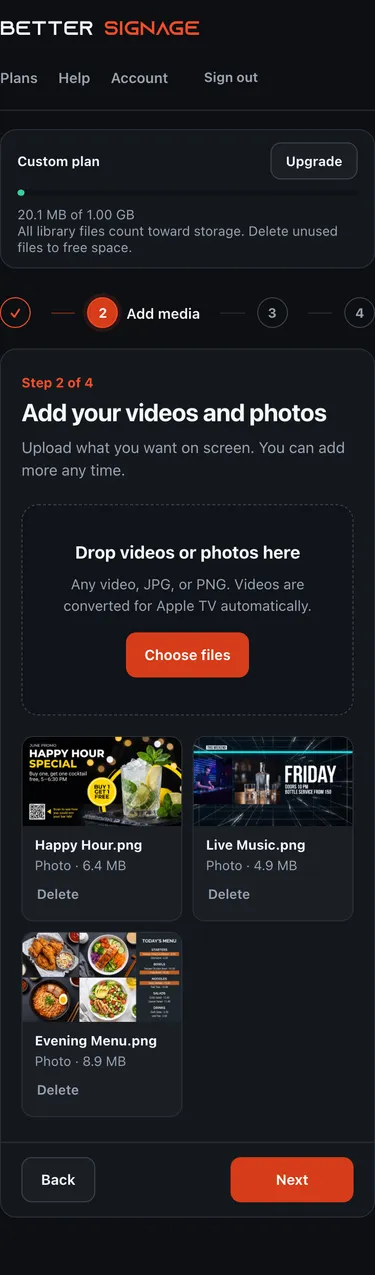
Upload videos and photos. Videos convert on our servers; follow their progress here and add them to your playlist when they are ready.
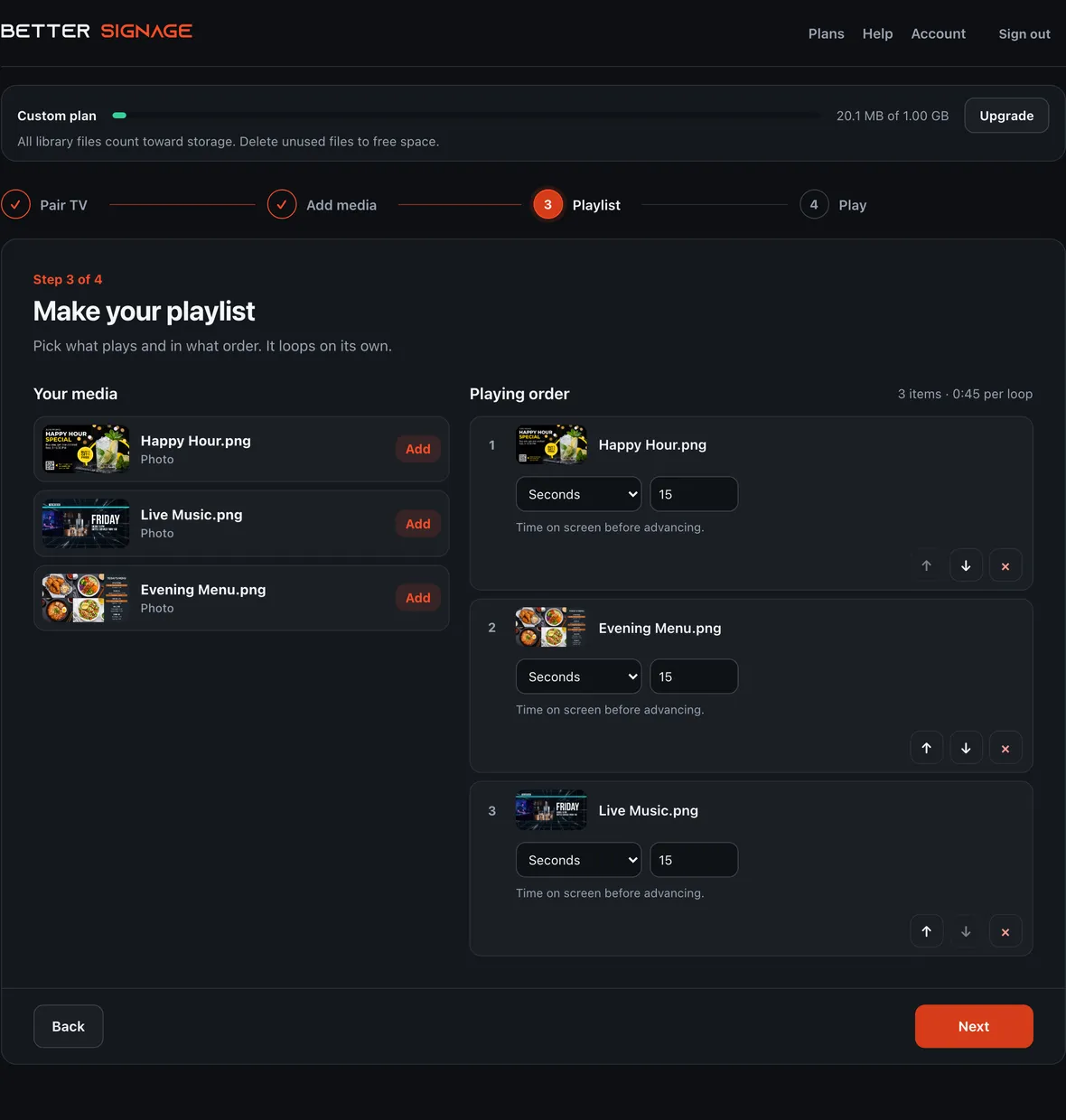
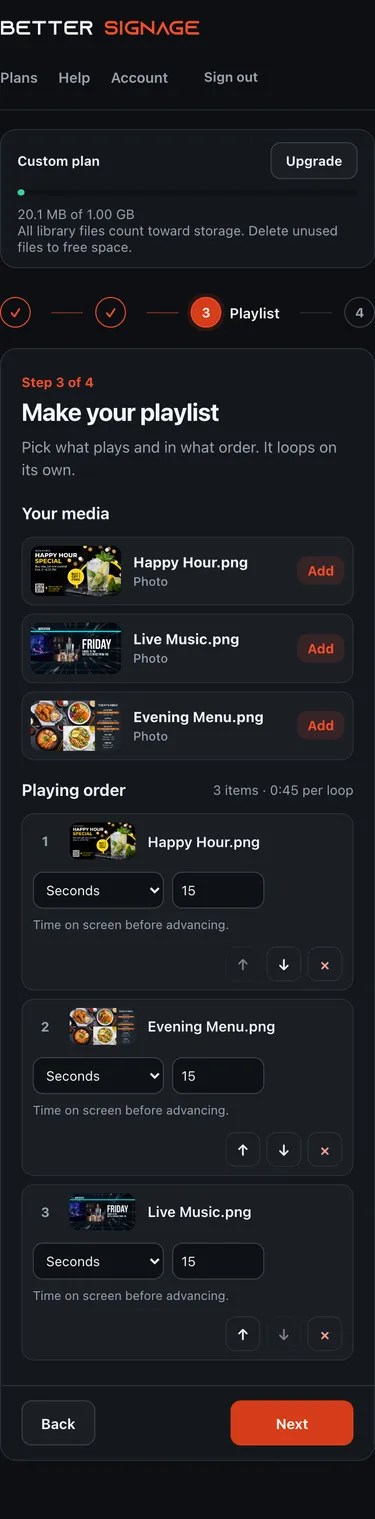
Arrange media with the order controls, set how long it stays on screen, and send the updated playlist.
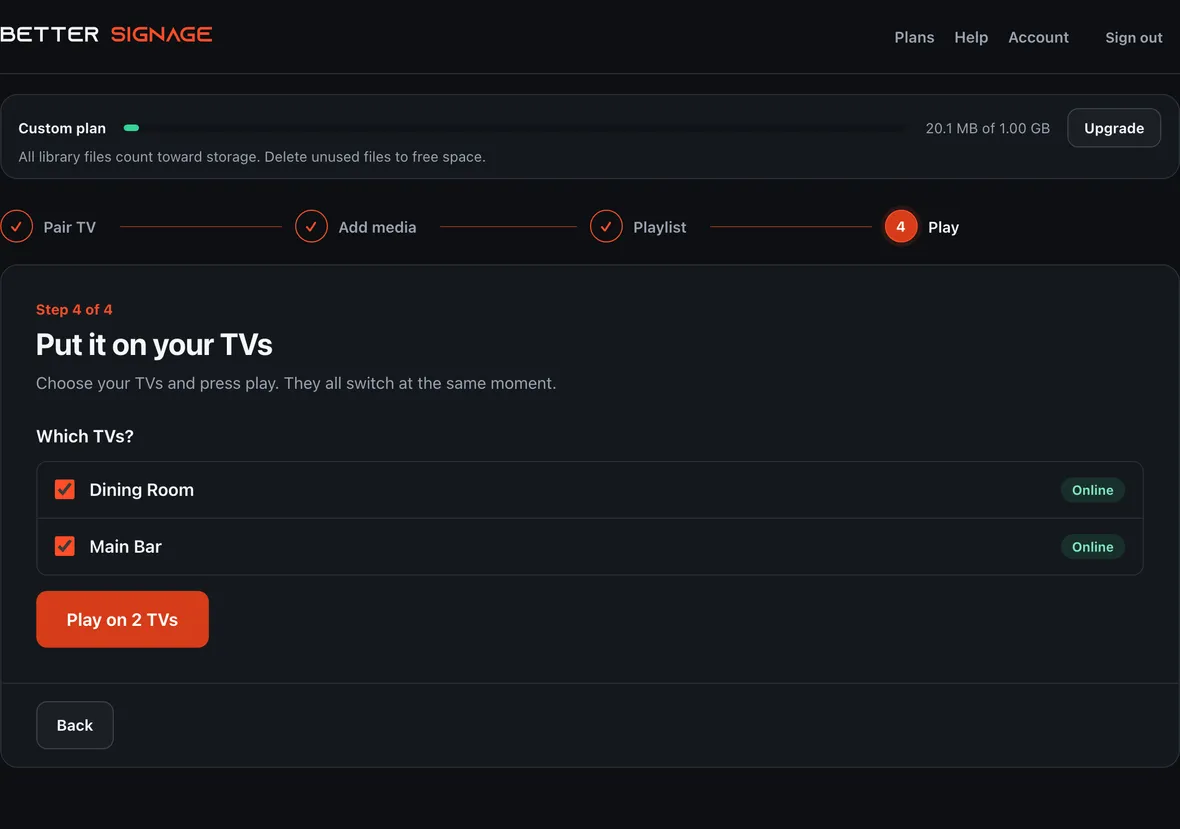
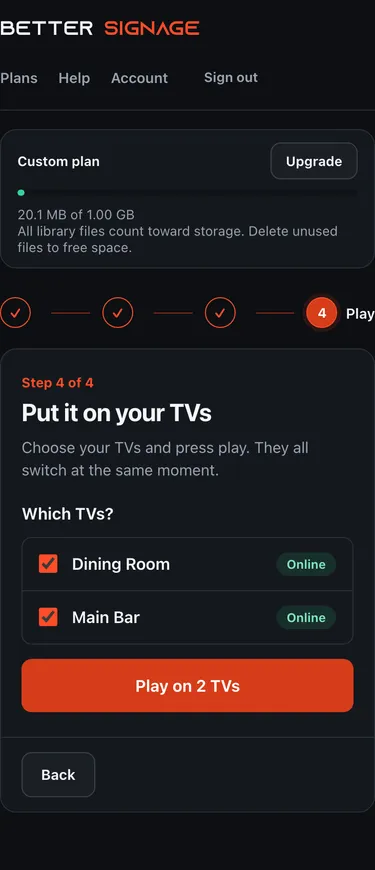
Pair Apple TVs, build the playlist, and use Play to send it to the paired screens you select.
{03 / LOCAL PLAYBACK◆}
Why it doesn't break
Temporary internet outage? Prepared content keeps playing locally.
Each Apple TV keeps its prepared playlist on the device. During a temporary WAN interruption, cached playback can continue; new publishes and status reporting wait for connectivity.
- 01DownloadedEach Apple TV gets only the files assigned to it.
- 02VerifiedFile size and hash are checked before anything switches.
- 03Played locallyPrepared content can keep looping during a temporary WAN interruption.
CONTROL / CLOUDPublish playlist version N
VENUE NETWORK
INTERNET TEMPORARILY UNAVAILABLELOCAL PLAYBACK CONTINUES
{04 / HYBRID AV◆}
Works with the AV you already own
Keep live TV. Add your own signage.
DIRECTV / CABLESMALLER MATRIXSELECTED SCREENS
Leave live sports and broadcast on your existing distribution. Better Signage does not control live-TV receivers or HDMI routing.
BETTER SIGNAGE CLOUDAPPLE TV ENDPOINTSSIGNAGE SCREENS
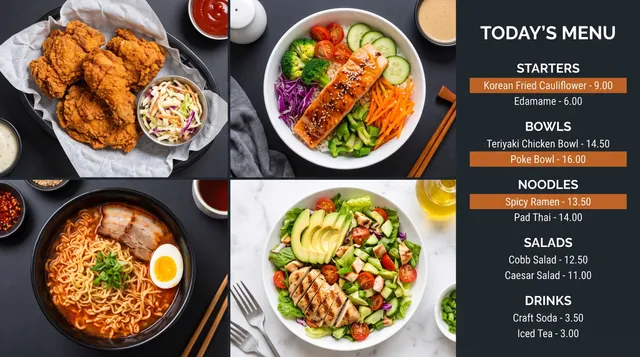
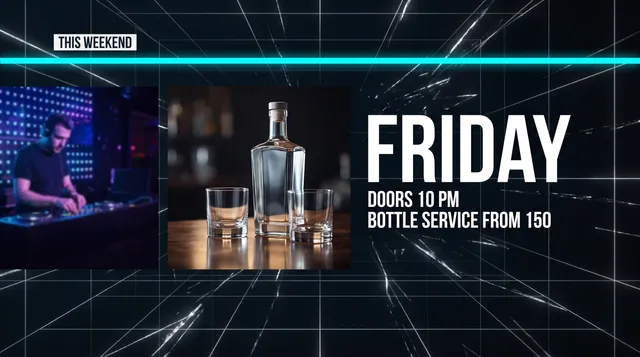
Drink specials, menus, events, and sponsor loops play from the Apple TVs behind your displays. Route them through your matrix like any other source, or hang them straight off a TV.
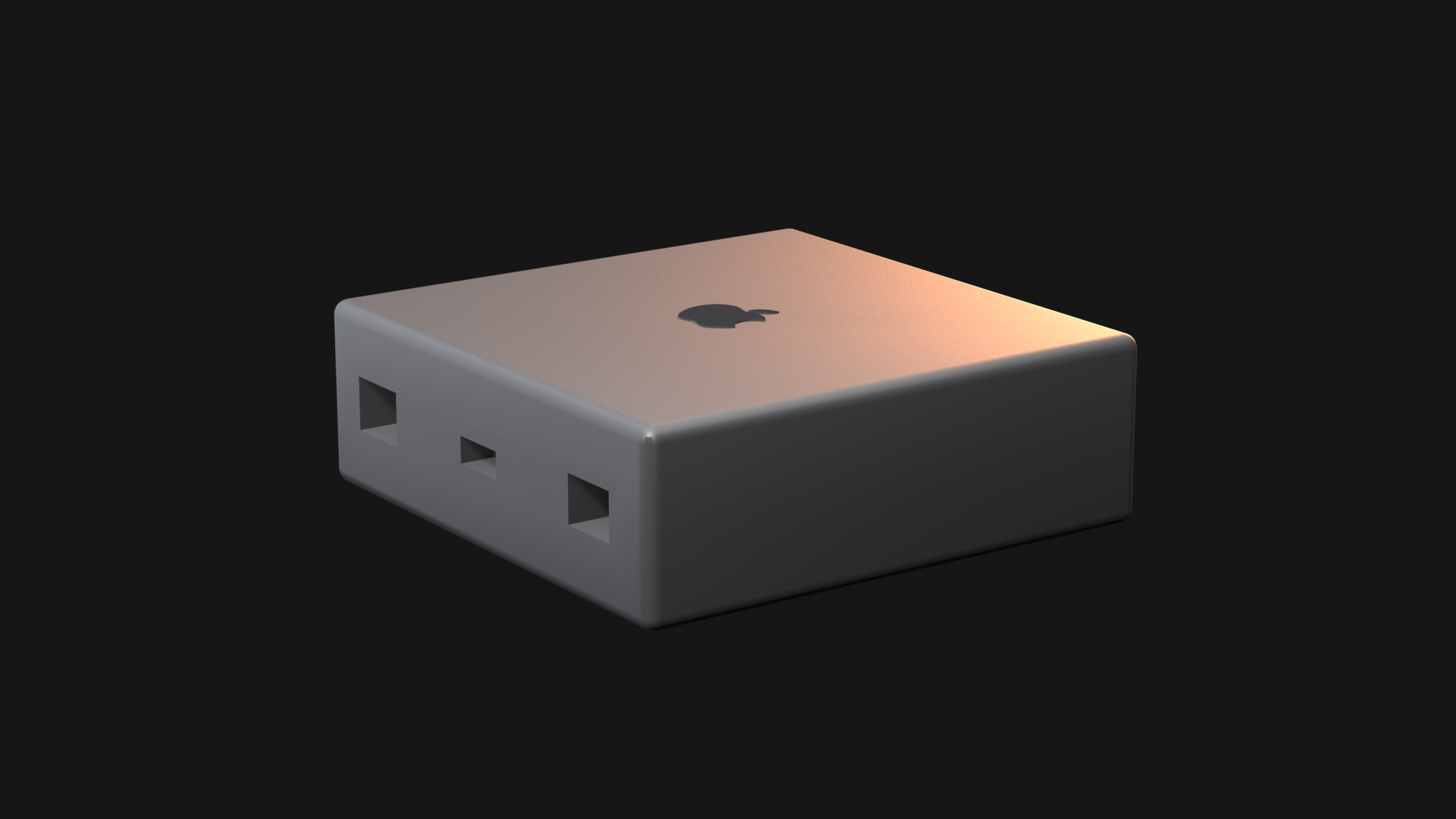
One signage source,
routed where you choose.
{05 / VENUE APPLICATIONS◆}
Unlimited screens on Free and paid plans
Digital signage that grows screen by screen, not bill by bill.
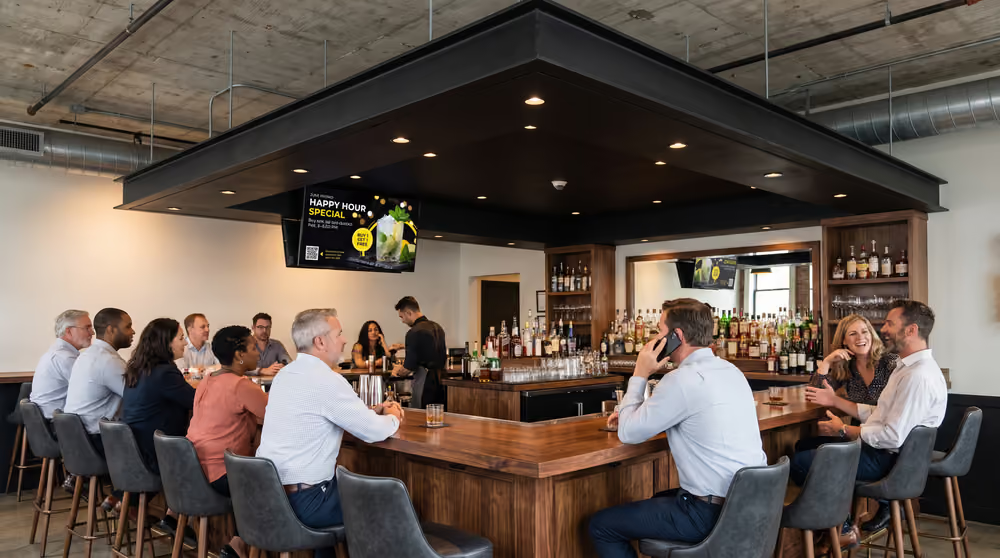
Put Better Signage on the TVs that show your own promos. Every standard plan lets you add compatible Apple TVs without a per-screen subscription fee. Publish a playlist to the paired screens you select.
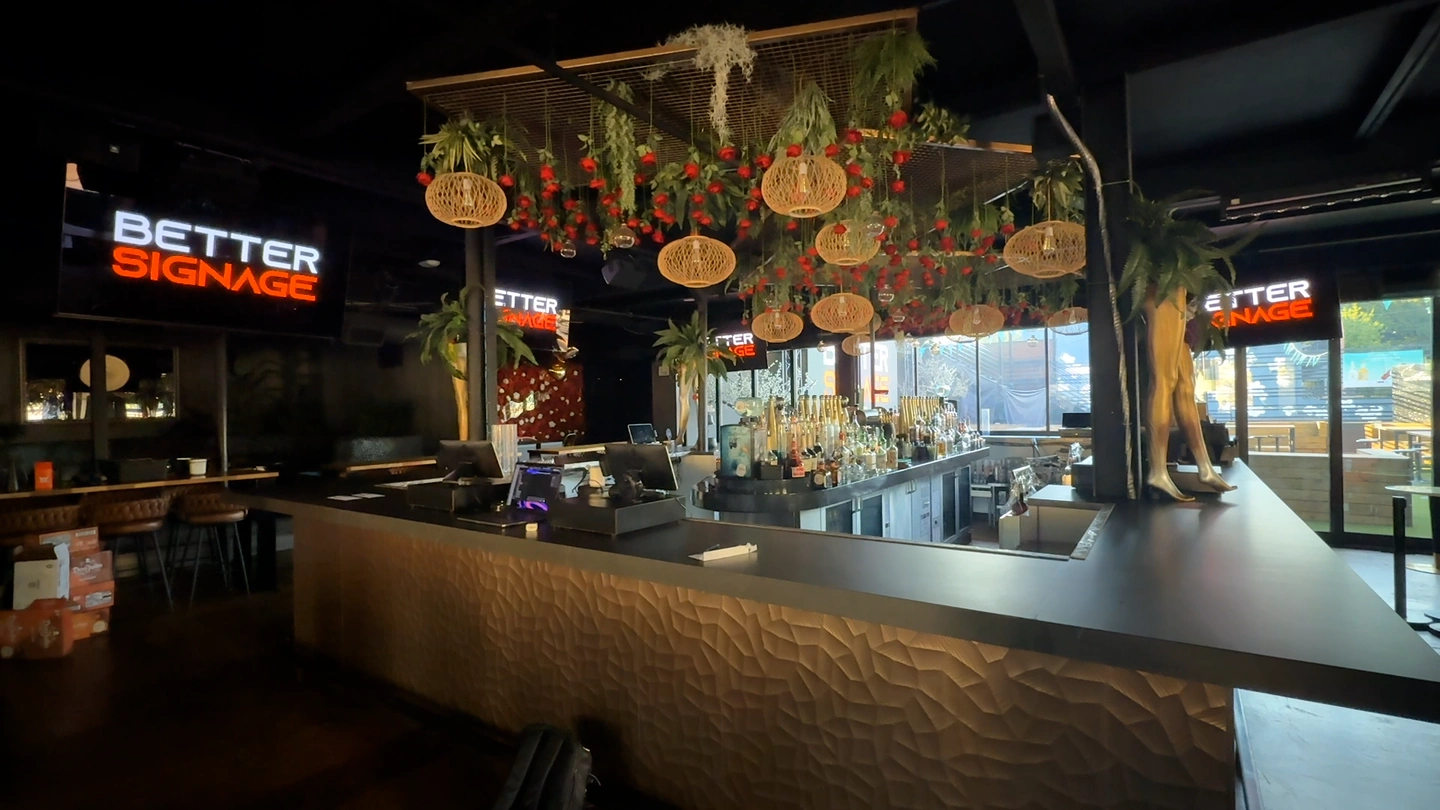
VENUE TYPES / 01—06
- 01NightclubsEvent nights and drink promos
- 02RestaurantsDigital menu boards
- 03BarsHappy hour and sponsors
- 04BreweriesTap lists and new releases
- 05HotelsGuest info and offers
- 06Entertainment venuesPre-show loops
{06 / NEXT STEP♥}
For bars, restaurants and multi-screen venues
Free your signage.
Start with 50 MB and unlimited screens at $0 a month. Paid plans add storage, with no per-screen fee.
Request a demoSend your demo request through our support form. Include your venue type and number of screens.
Before your first publish
From a menu file to the room.
Prepare a short loop or a few slides, then work through the setup in your browser. You can manage your content from a phone, tablet, or computer.
Check the hardware first
You need a compatible player running tvOS 26.5 or later, a landscape HDMI display, and internet access for installation and downloads. Open the app, enter its current pairing code in your account, and give the device a name you recognize. Check system requirements and follow the installation guide.
Choose files that are easy to read
Upload JPEG or PNG artwork, or a supported video. Keep essential text inside a landscape composition so cropping does not remove it. Conversion and checking finish before a clip can join the running order. Use short exports and adjust their time on screen in the dashboard. See the video optimization guide.
Send, then confirm in the room
Editing the draft does not change what is playing. Choose the devices you want to update and press Play. Leave them connected while they prepare the files, then check the physical displays and HDMI inputs. An online status alone cannot confirm what guests see. The first-playlist guide walks through each step.